37 — Halftone 明暗 Shader
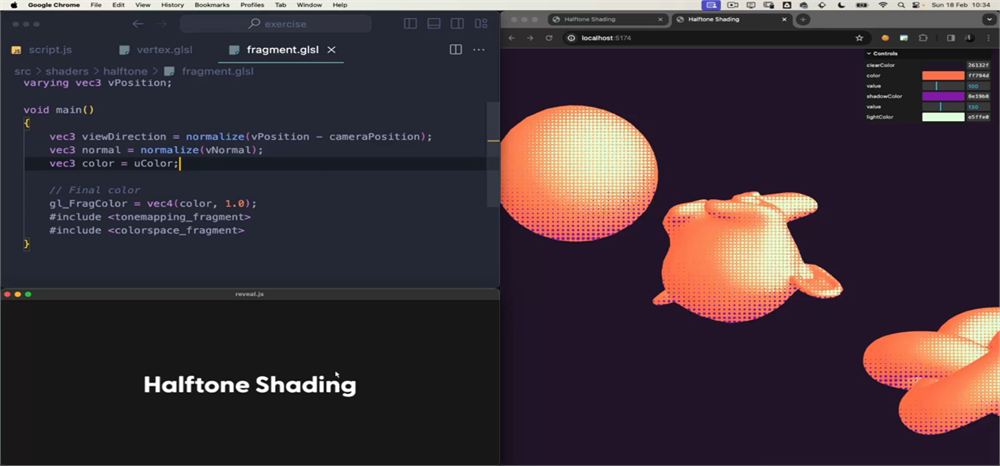
介绍
halftone(半色调)是印刷中使用的一种技术,它通过一个由同一种颜色、但大小不同的点组成的网格,来创造出看起来像渐变的色彩变化。
从远处看,各种 halftone 的组合会产生令人愉悦的色彩明暗。
如今,它被用来营造老派的氛围,你可以在诸如 Spider‑Man: Into the Spider‑Verse 这样的现代电影中欣赏到它。
请确保以足够高的分辨率观看以下图片,以便欣赏这种效果:
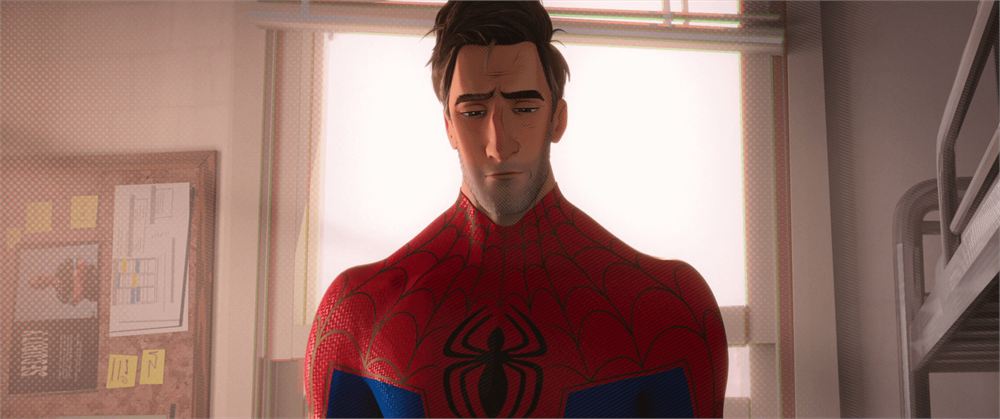
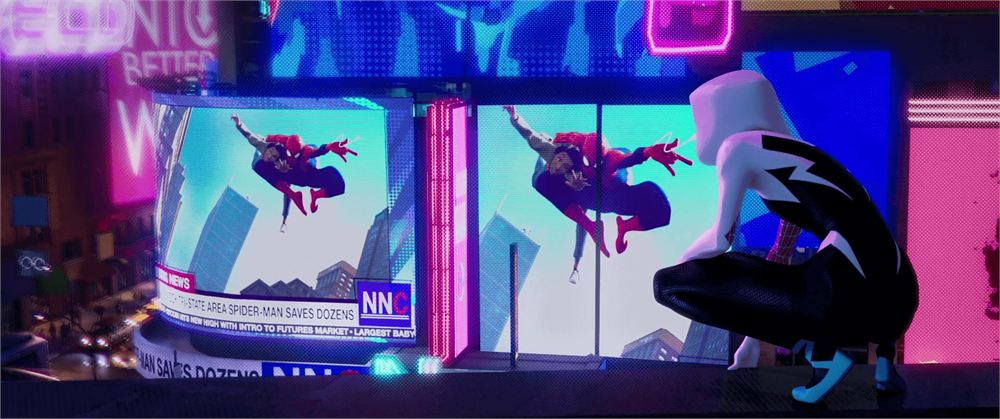
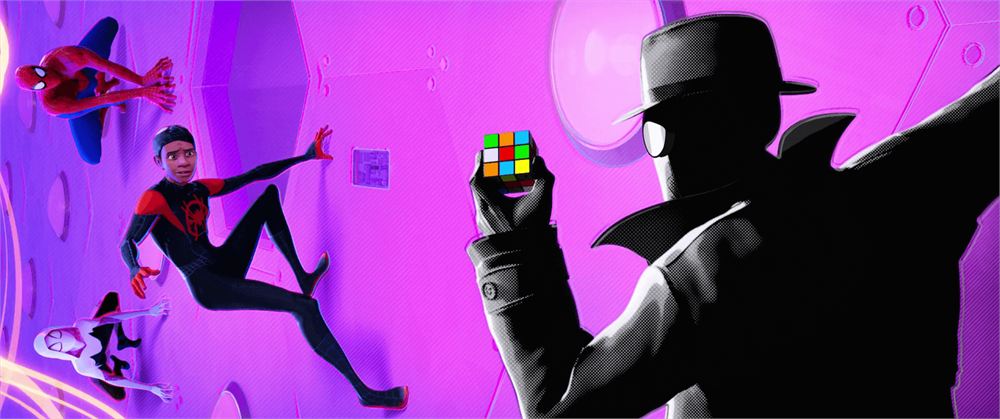
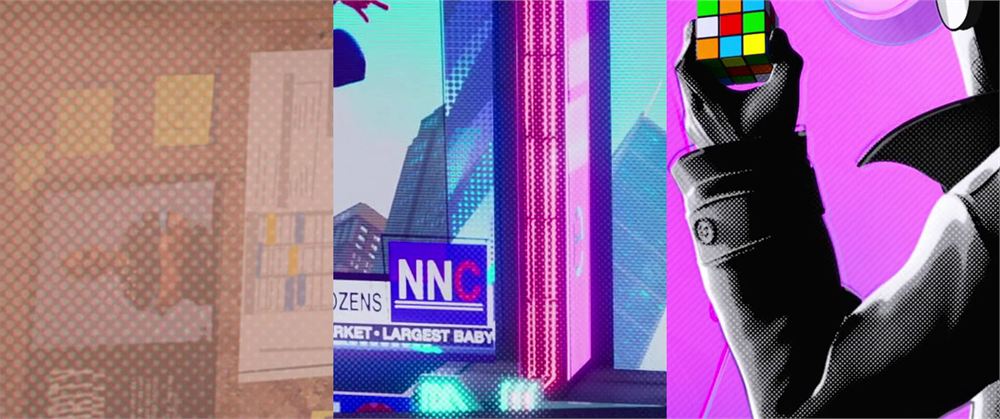
下面是一个由 @YanSculpts 实现的 halftone 的好例子:https://twitter.com/YanSculpts/status/1692251937087832389
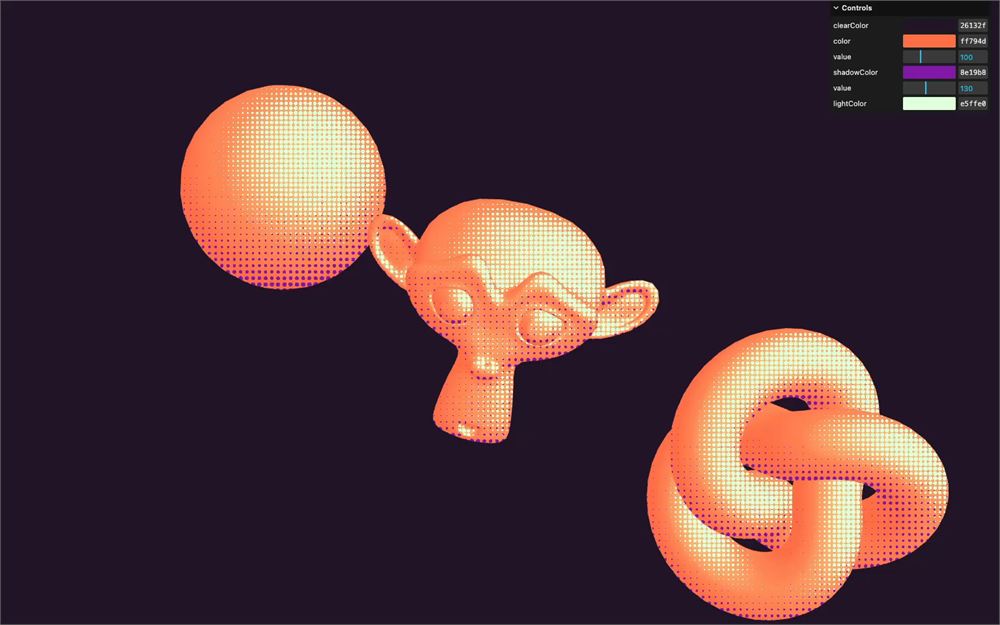
在本课中,我们将复现这种效果,为我们的 3D 对象添加阴影和反射:
准备工作
起始项目已经包含以下内容:
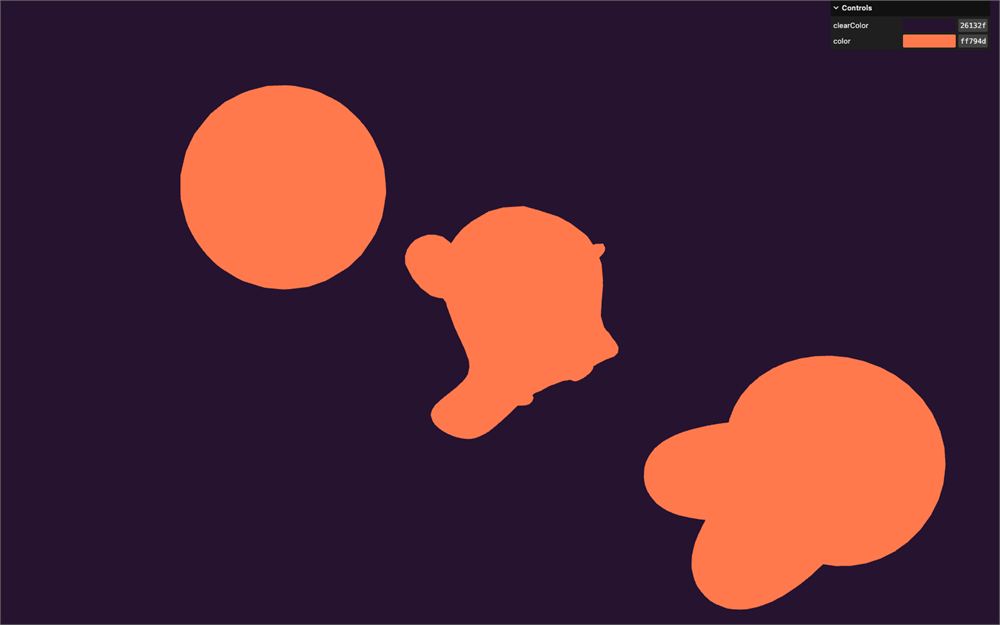
- 3 个旋转的对象:一个球体、Suzanne 和一个环面纽结
- 一个已经包含在
src/shaders/halftone/文件夹中的基础 shader,包含一个vertex.glsl和一个fragment.glsl - 来自之前课程的光照函数,位于
includes/文件夹中(我们暂时还不会用到它们) - 一个
lil-gui实例,带有两个调节项,分别控制发送到 fragment shader 的clearColor和uColoruniform。 - 用于处理 GLSL 文件的
vite-plugin-glsl依赖 - 用于旋转视角的
OrbitControls
光照
虽然 halftone 的理念是用统一的颜色来创建明暗,但我们实际上会像 Spider‑Man: Into the Spider‑Verse 中那样应用它,将其叠加在一层微妙的光照明暗之上。
vNormal和vPosition已经从 vertex 发送到 fragment。viewDirection已经计算好了。normal已经归一化。
我们将使用环境光和方向光。
在 fragment.glsl 中引入这两种光源:
#include ../includes/ambientLight.glsl
#include ../includes/directionalLight.glsl

void main()
{
    // ...
}
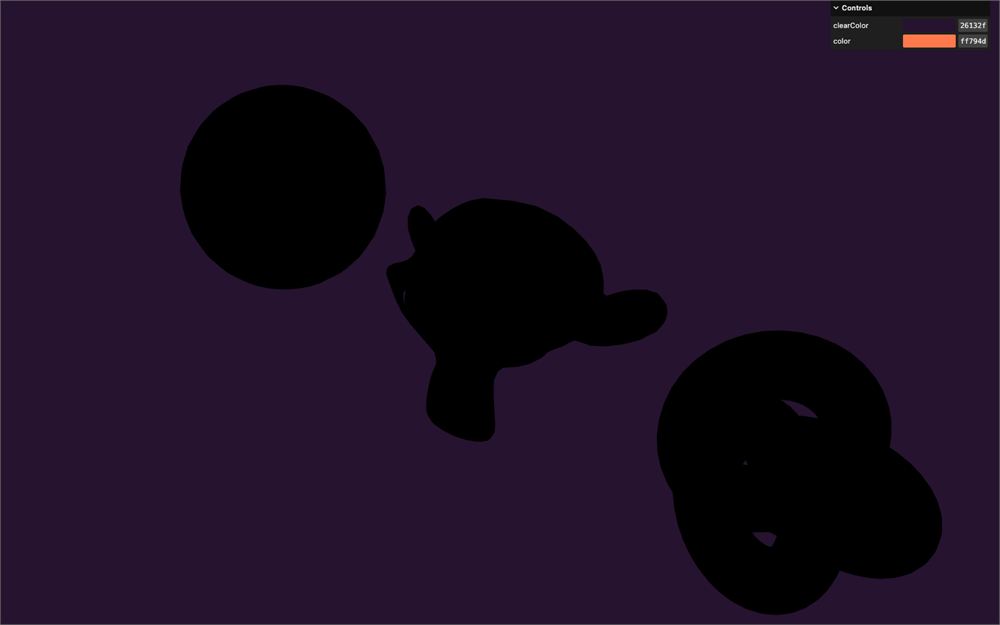
创建一个 light 变量,初始值为 vec3(0.0),并将它与 color 相乘:
void main()
{
    vec3 viewDirection = normalize(vPosition - cameraPosition);
    vec3 normal = normalize(vNormal);
    vec3 color = uColor;

    // Lights
    vec3 light = vec3(0.0);
    color *= light;

    // ...
}
添加如下 ambientLight():
void main()
{
    // ...

    // Lights
    vec3 light = vec3(0.0);

    light += ambientLight(
        vec3(1.0), // Light color
        1.0        // Light intensity,
    );

    color *= light;

    // ...
}
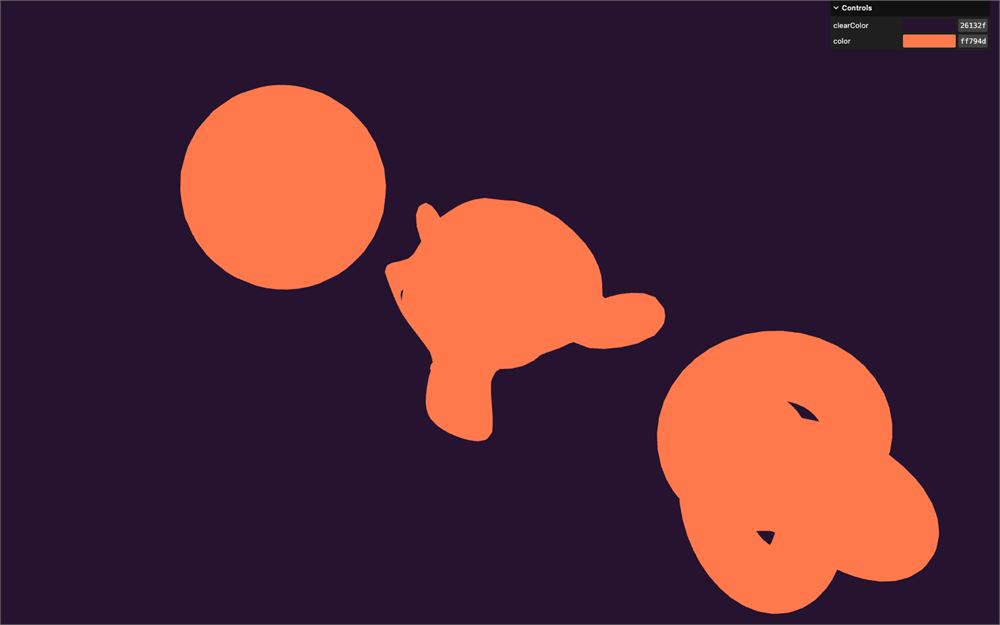
由于我们使用了 1.0 的光照强度,最终得到的还是初始颜色。
添加如下 directionalLight():
void main()
{
    // ...

    light += directionalLight(
        vec3(1.0, 1.0, 1.0), // Light color
        1.0,                 // Light intensity
        normal,              // Normal
        vec3(1.0, 1.0, 0.0), // Light position
        viewDirection,       // View direction
        1.0                  // Specular power
    );

    // ...
}
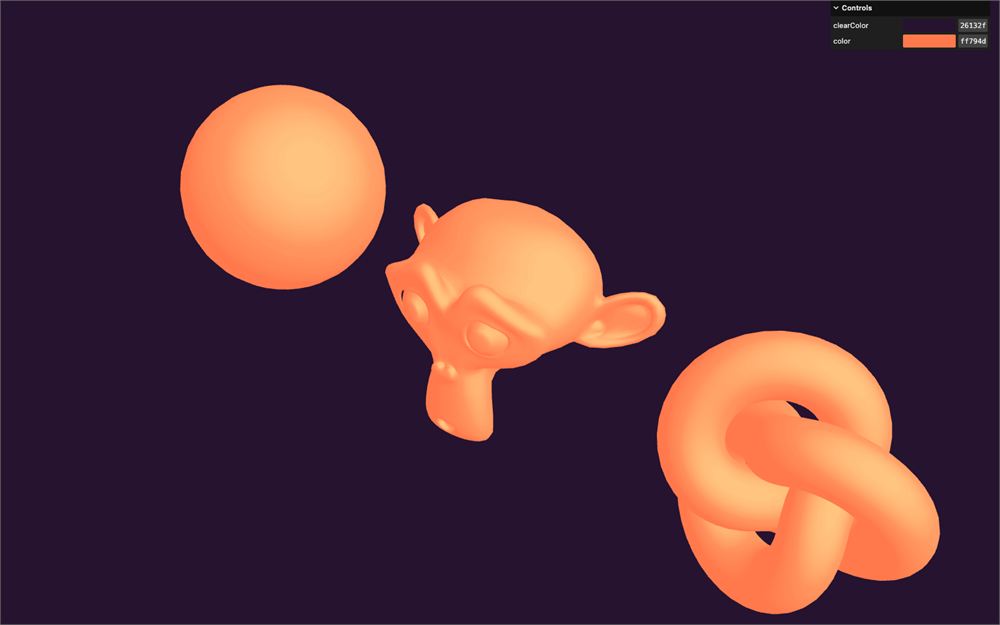
方向光为我们的对象添加了一层微妙的明暗。
网格
如前所述,halftone 由一个点组成的网格构成,而这个网格需要在屏幕上保持静止,不跟随对象或 camera 的变换。
对于 HTML/CSS 开发者:你可以把它想象成 fixed 定位。
目前,我们想要的只是一种 UV 坐标,但要覆盖整个渲染画面。好消息是,有一个名为 gl_FragCoord 的变量正好能做到这一点。
gl_FragCoord 是一个 vec4,其中 xy 构成了“屏幕”坐标,而 zw 用于深度,但我们不关心后两个。
让我们看看 gl_FragCoord.xy 里是什么。
在 fragment shader 中光照部分之后,创建一个 vec2 uv 变量,并从 gl_FragCoord 中 swizzle 出 xy:
void main()
{
    // ...

    // Lights
    // ...

    // Halftone
    vec2 uv = gl_FragCoord.xy;

    // ...
}
将它赋给 gl_FragColor 的前两个值,其余设为 1.0:
void main()
{
    // ...

    // Halftone
    vec2 uv = gl_FragCoord.xy;

    // Final color
    gl_FragColor = vec4(uv, 1.0, 1.0);
    // ...
}
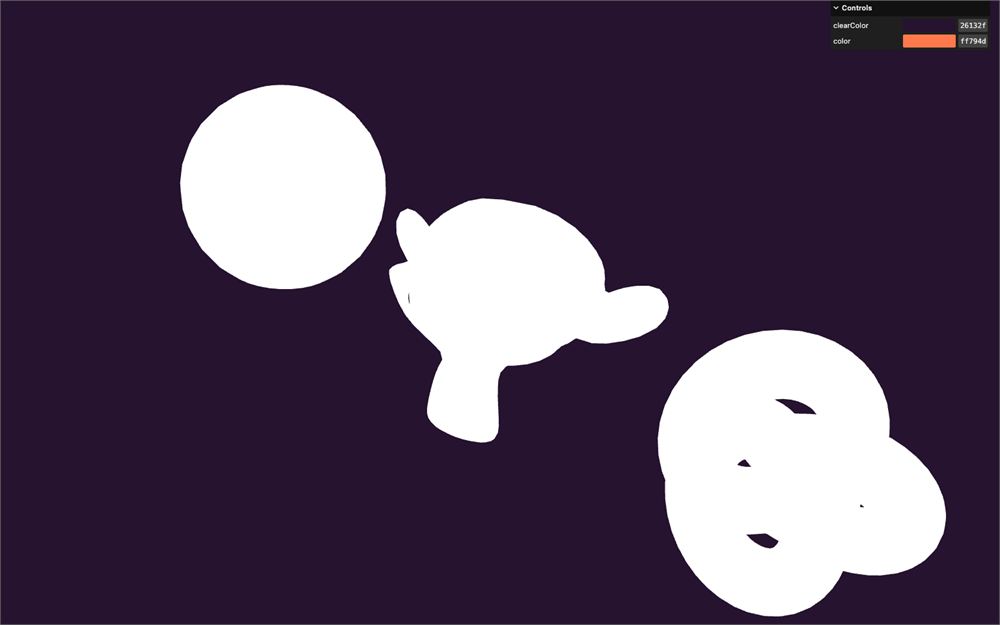
为什么全都是白色?我们是不是弄错了?
将 gl_FragCoord.xy 除以 1000.0:
void main()
{
    // ...
    vec2 uv = gl_FragCoord.xy / 1000.0;
    // ...
}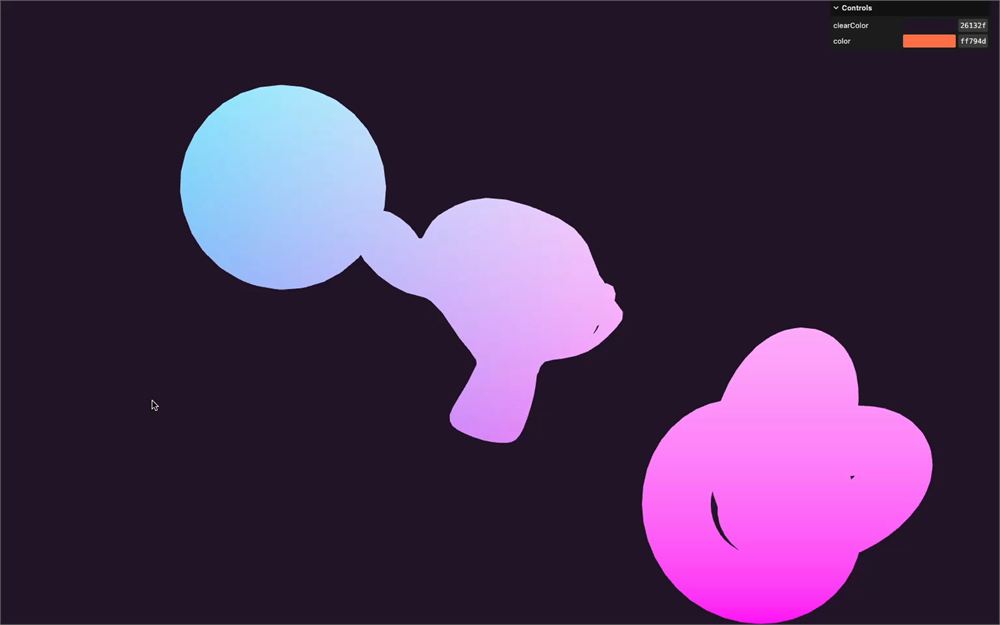
现在我们得到了某种渐变。根据你的分辨率和像素比,你可能会得到不同的结果,并且可能需要移动 camera 才能欣赏到那个渐变。
原因是 gl_FragCoord.xy 是 fragment 坐标,意味着左下角绝对位置的 fragment 坐标是 0.0, 0.0,它右边那个是 1.0, 0.0,再下一个是 2.0, 0.0,如此不断延续下去:
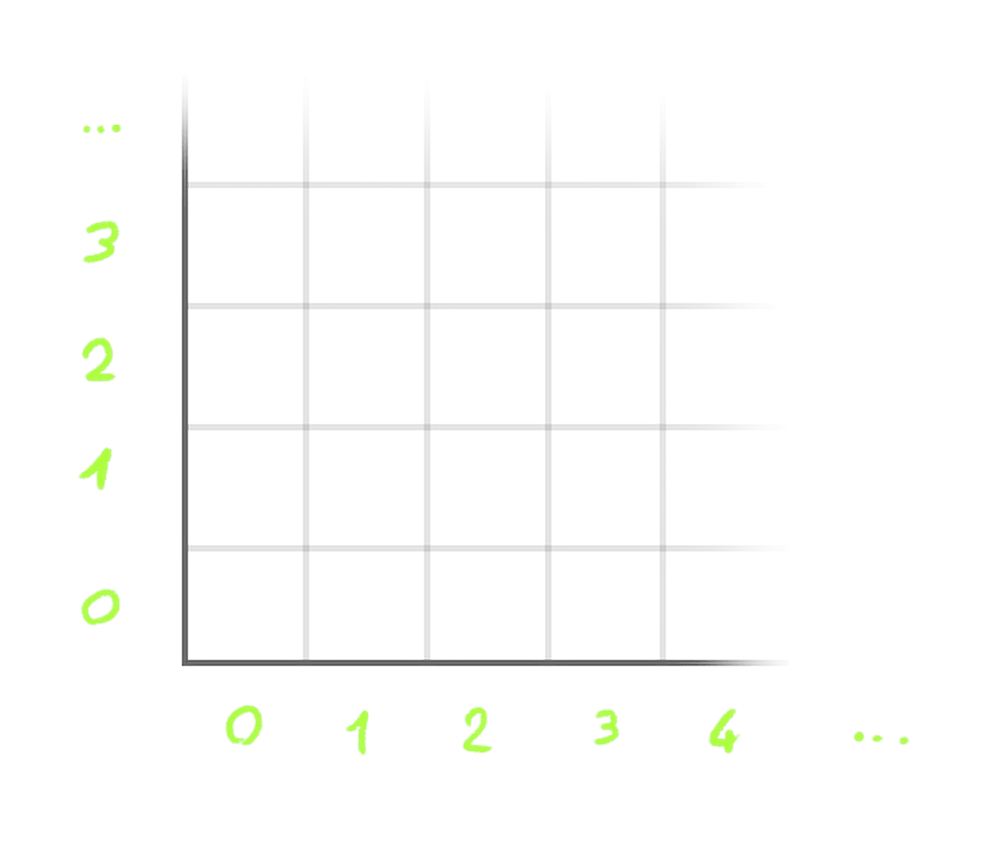
这意味着,如果你以 1920x1080 分辨率渲染,右上角的 gl_FragCoord.xy 的值将是 1919.0 和 1079.0。
我们想要一个归一化的值,意味着无论渲染分辨率和像素比如何,我们都希望它从 0, 0(左下角)到 1, 1(右上角)。
为此,我们需要把分辨率发送到我们的 shader。
在 script.js 中,使用 Uniform 类创建一个 uResolution uniform。然后,向它传入一个带有 sizes.width 和 sizes.height 的 Vector2,两者都乘以 sizes.pixelRatio:
const material = new THREE.ShaderMaterial({
    // ...
    uniforms:
    {
        // ...
        uResolution: new THREE.Uniform(new THREE.Vector2(sizes.width * sizes.pixelRatio, sizes.height * sizes.pixelRatio))
    }
})
在 resize 回调中更新该 uniform:
window.addEventListener('resize', () =>
{
    // Update sizes
    // ...

    // Update materials
    material.uniforms.uResolution.value.set(sizes.width * sizes.pixelRatio, sizes.height * sizes.pixelRatio)

    // ...
})
在 fragment.glsl 中,以 vec2 的形式获取 uResolution:
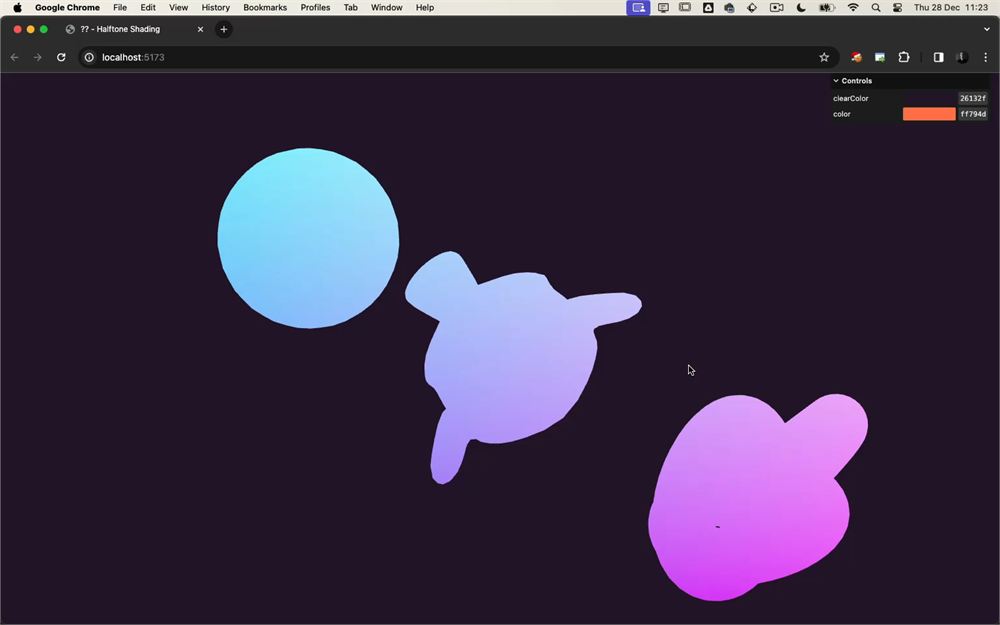
uniform vec2 uResolution;现在我们可以将 gl_FragCoord.xy 除以 uResolution,这应该会得到一个水平和垂直方向上都从 0 到 1 的 uv,无论分辨率如何:
void main()
{
    // ...

    // Halftone
    vec2 uv = gl_FragCoord.xy / uResolution;

    // ...
}
我们实际上犯了一个小错误。但既然目前还注意不到,那就继续往下吧。
我们的 uv 目前还不是一个网格。我们希望这个值在几个像素内从 0 到 1,然后不断重复。
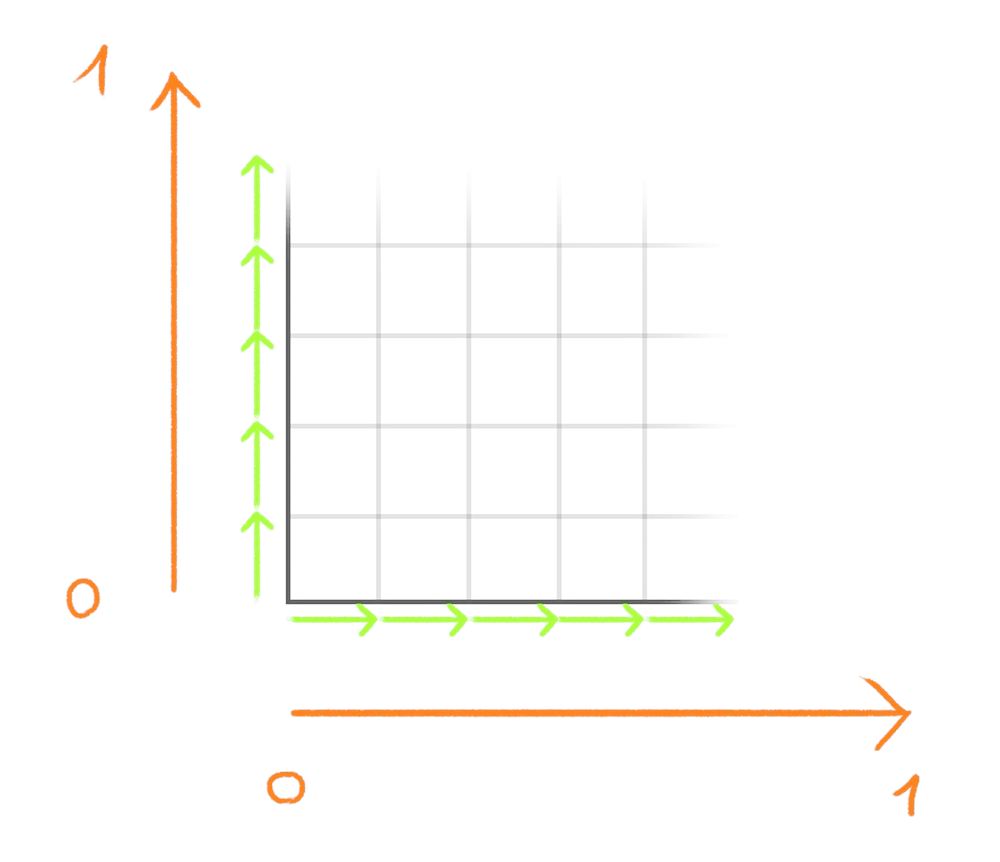
为此,我们将把 uv(当前从 0 到 1)乘以一个较大的数,并使用取模,让值一旦达到 1 就回到 0。
乘以 50.0,并使用 mod 函数,以 1.0 作为上限:
void main()
{
    // ...
    vec2 uv = gl_FragCoord.xy / uResolution;
    uv *= 50.0;
    uv = mod(uv, 1.0);

    // ...
}
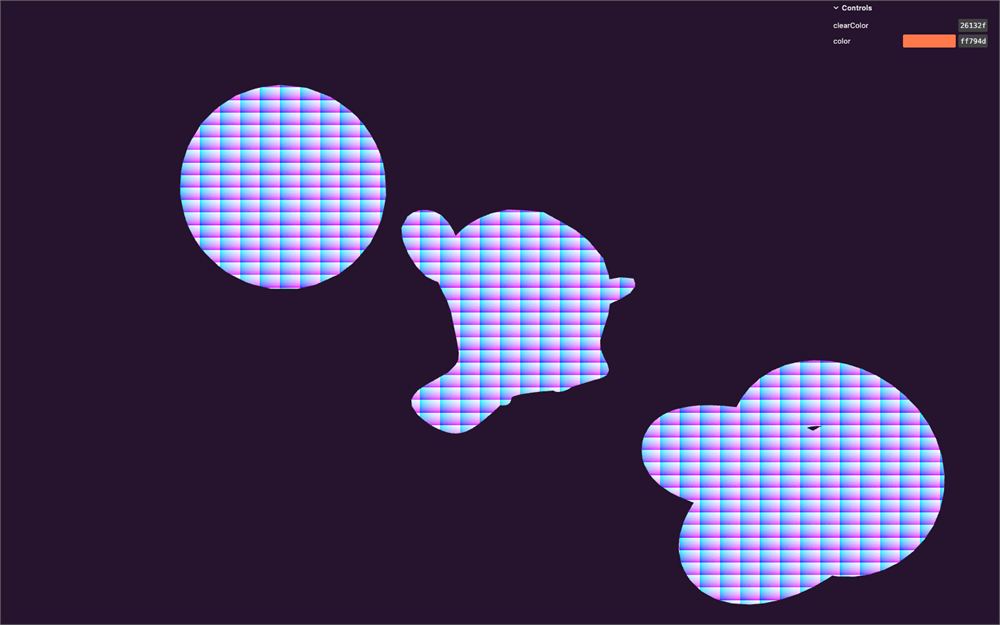
现在看起来更像一个网格了。可惜,单元格按照渲染的宽高比被拉伸了。
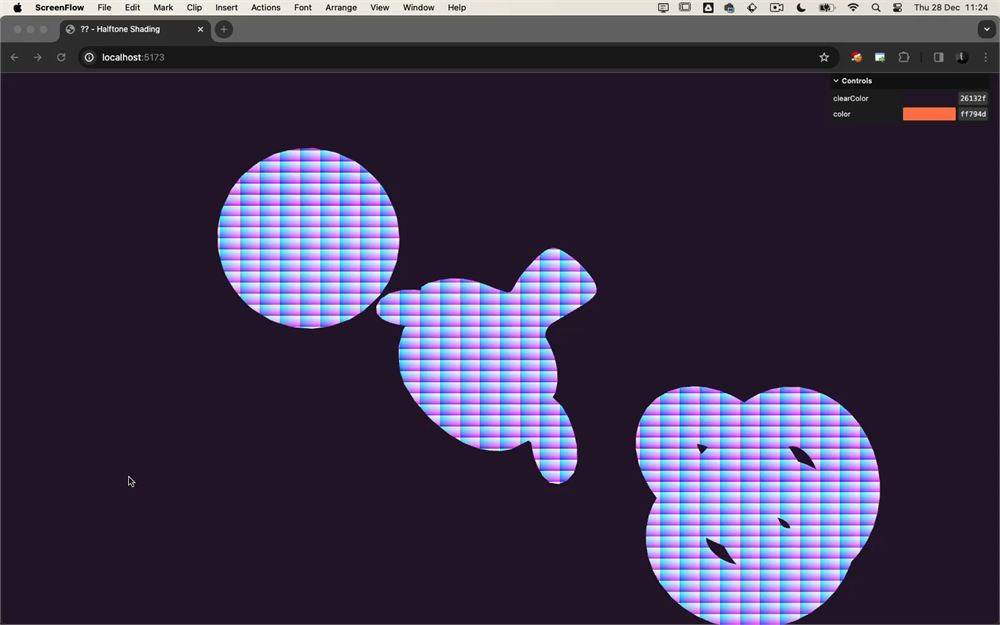
这就是我们之前犯的错误。幸运的是,有一个简单的修复方法。我们不再除以 uResolution,而是只除以 uResolution.y:
void main()
{
    // ...
    vec2 uv = gl_FragCoord.xy / uResolution.y;
    // ...
}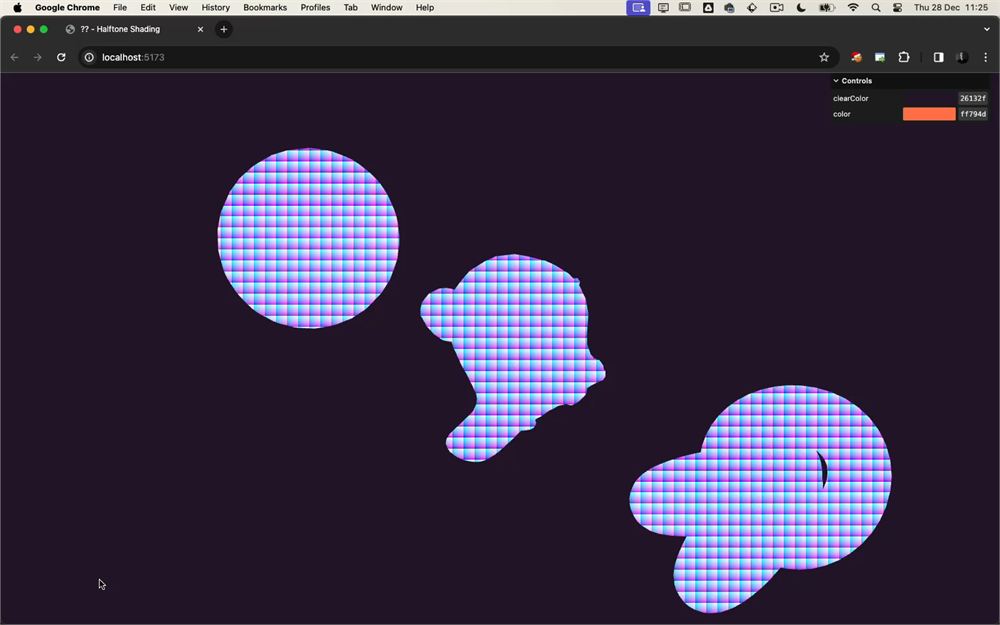
这样,水平和垂直轴都被同一个值(uResolution.y)相除,从而保持了它们的正方形形态。
更好的是,我们选择用来乘以网格的那个数字正好对应于垂直方向上的单元格数量。
让我们把它放进一个 repetitions 变量:
void main()
{
    // ...

    // Halftone
    float repetitions = 50.0;

    vec2 uv = gl_FragCoord.xy / uResolution.y;
    uv *= repetitions;
    uv = mod(uv, 1.0);

    // ...
}
把变量分离出来,之后当我们把 halftone 公式放进一个函数时会派上用场。
点
现在我们有了网格 UV,就可以像在 Shader Patterns 课程中那样,绘制一个会出现在网格每个单元格中的圆盘:
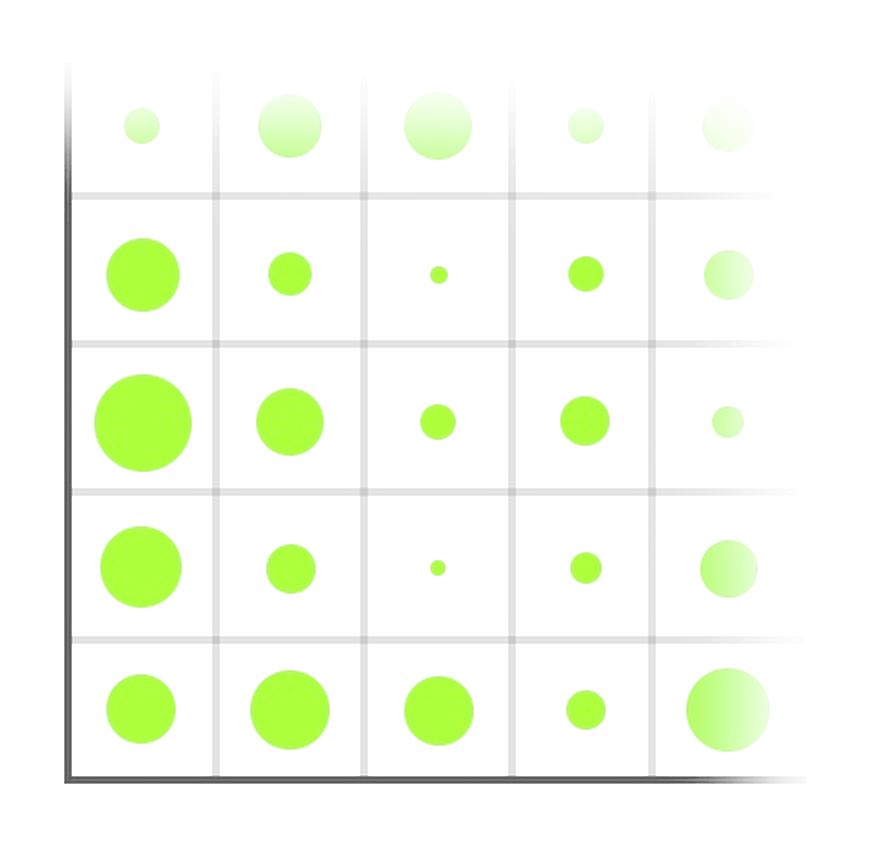
首先,我们需要到 UV 单元格中心的距离,我们可以通过与 vec2(0.5) 相比的 distance 函数来实现:
void main()
{
    // ...

    float point = distance(uv, vec2(0.5));

    // ...
}
将它发送到 gl_FragColor 看看:
void main()
{
    // ...

    float point = distance(uv, vec2(0.5));

    // Final color
    gl_FragColor = vec4(point, point, point, 1.0);
    // ...
}
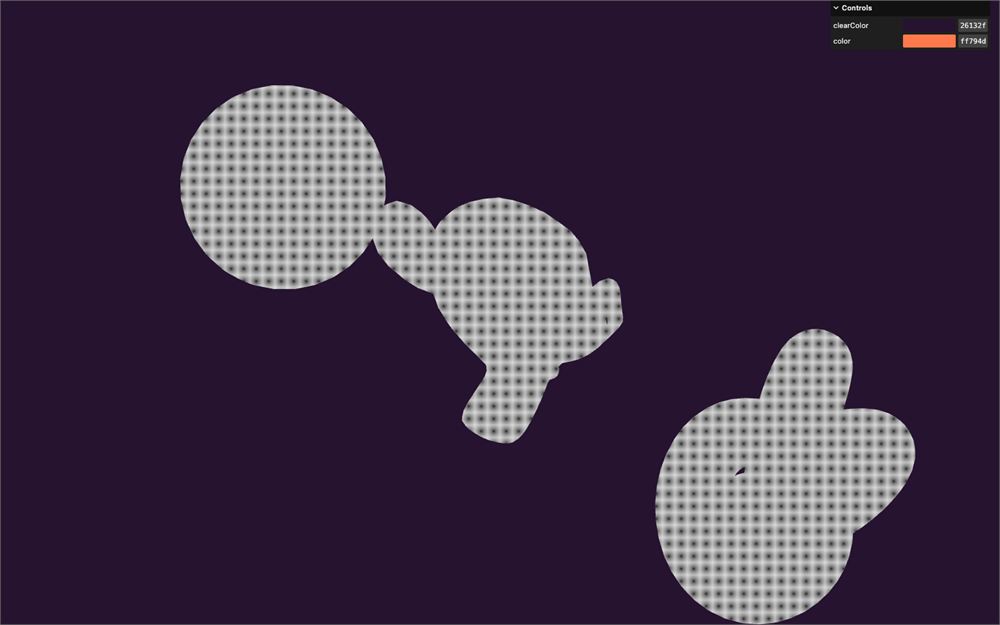
这是一个开始,但我们不想要径向渐变,我们想要一个边缘清晰的圆盘。为此,我们需要当 point 值达到某个特定阈值时,立即从 0.0 变到 1.0。
我们可以使用 step 函数,阈值(第一个参数)设为 0.5:
void main()
{
    // ...

    float point = distance(uv, vec2(0.5));
    point = step(0.5, point);

    // ...
}
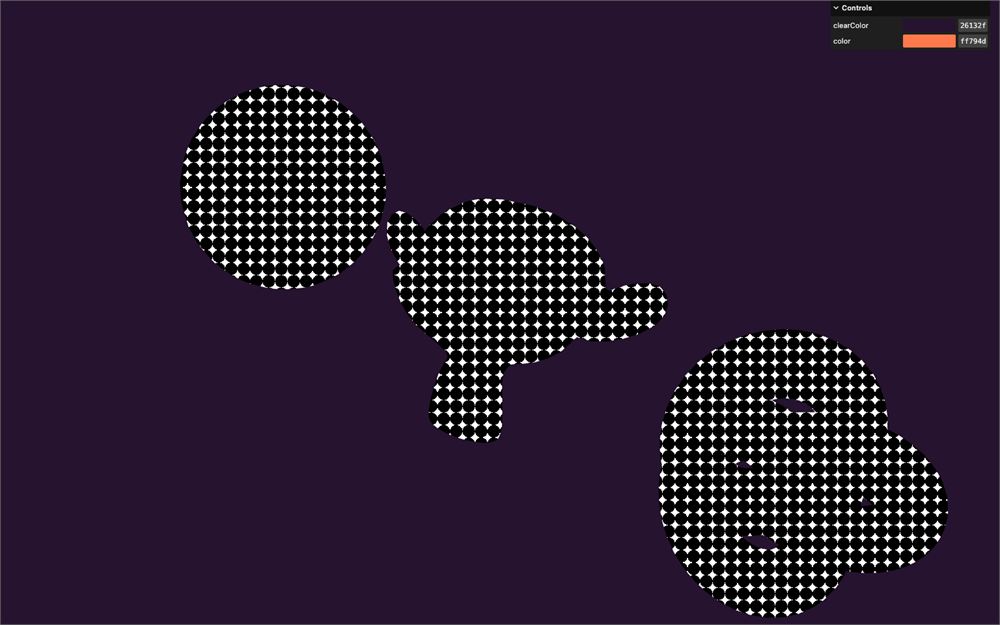
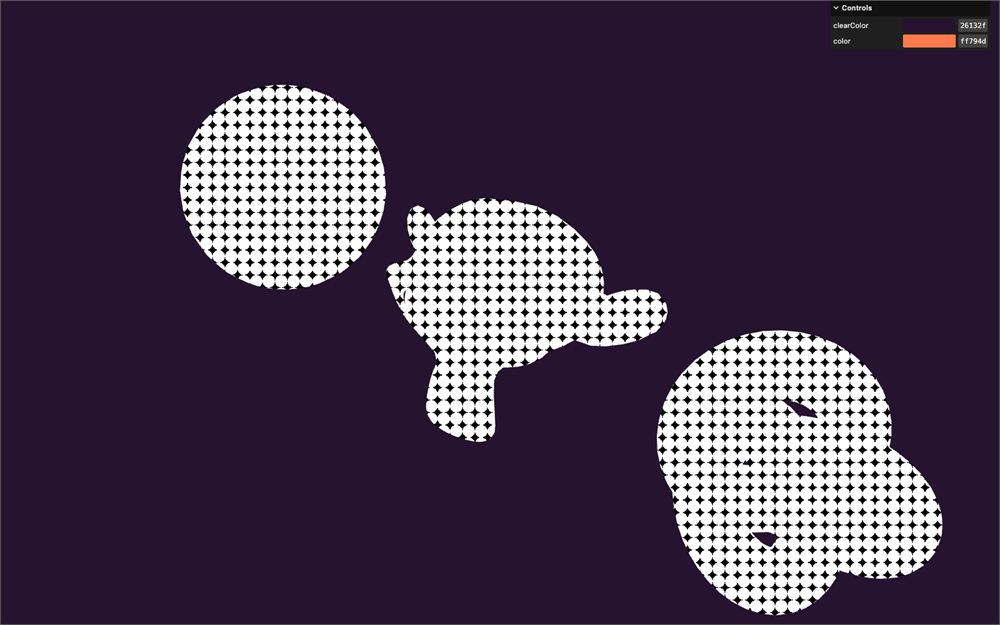
不错,但我们想要相反的结果,即 point 在内部为 1.0,在外部为 0.0。
一个愚蠢的做法是交换这两个参数,但我们改为从 1.0 开始,减去 step:
void main()
{
    // ...
    point = 1.0 - step(0.5, point);

    // ...
}
半径与强度
我们有了点组成的网格。现在,我们想根据 halftone 效果的强度来控制它们的半径。
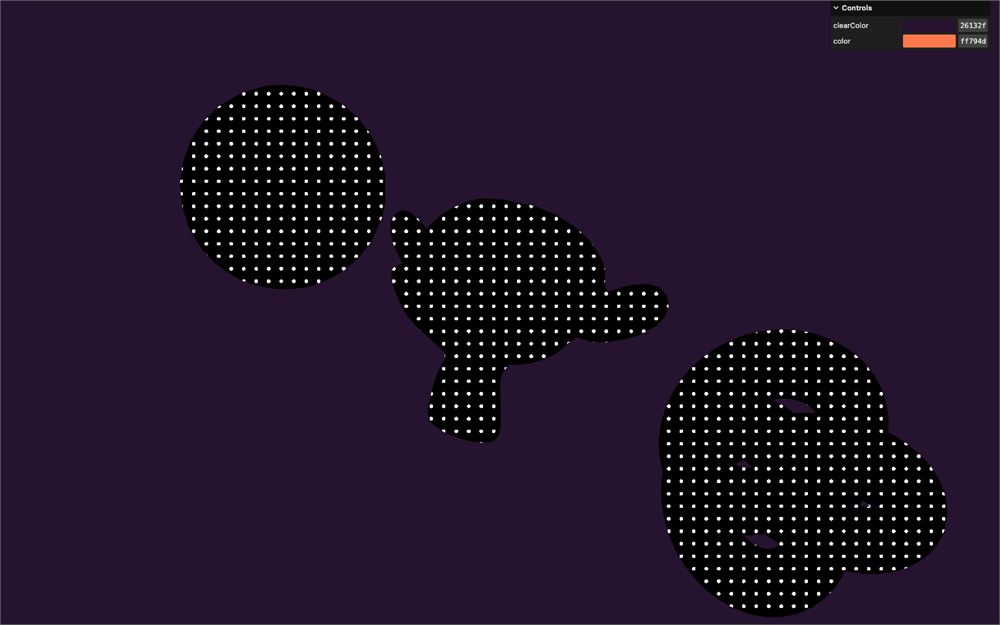
改变半径就像调整我们调用 step 时设置的 0.5 阈值一样简单。你可以快速测试一下,比如把它乘以 0.3:
void main()
{
    // ...
    point = 1.0 - step(0.5 * 0.3, point);

    // ...
}
让我们专注于计算强度。
我们要做的,与我们对方向光所做的非常相似。
我们要为 halftone 确定一个方向。如果面朝向那个方向,我们想要一个高值。如果它们朝向相反的方向,我们想要一个低值。
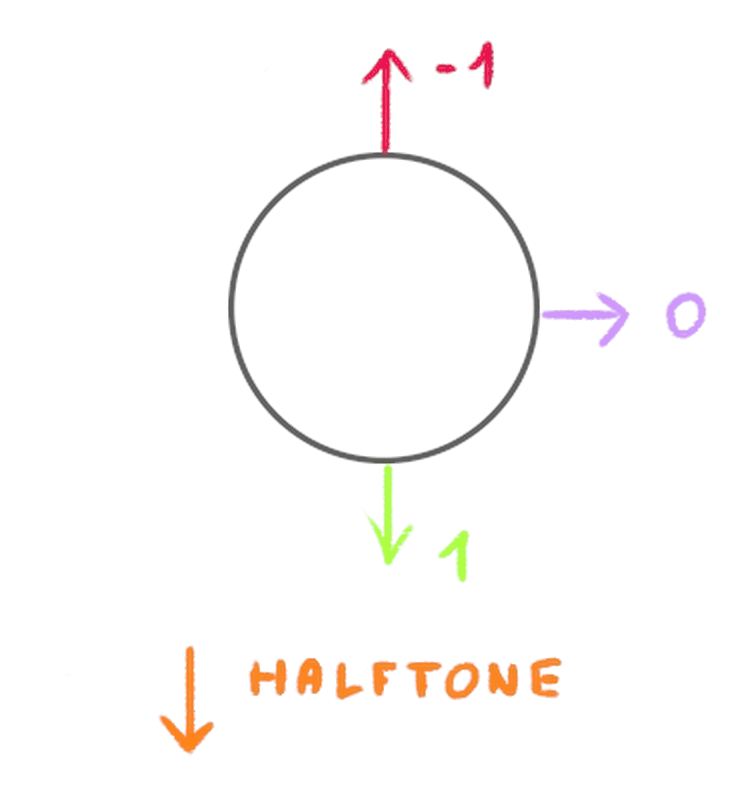
我们将使用通常的 dot product。
但首先,让我们创建一个 halftone 方向。我们将从阴影开始,它位于对象下方,意味着方向是朝下的。
在 halftone 部分的开始处,创建一个 vec3 direction 并将其设为朝下(y 轴上为 -1.0):
void main()
{
    // ...

    // Halftone
    float repetitions = 50.0;
    vec3 direction = vec3(0.0, -1.0, 0.0);

    // ...
}
repetitions 和 direction 在本课的某个时刻都会变成参数,所以让我们把它们放在一起。
我们已经有了面的朝向 normal。我们可以创建一个 float intensity,把 normal 和 direction 的 dot 结果赋给它:
void main()
{
    // ...

    // Halftone
    float repetitions = 50.0;
    vec3 direction = vec3(0.0, -1.0, 0.0);

    float intensity = dot(normal, direction);

    // ...
}
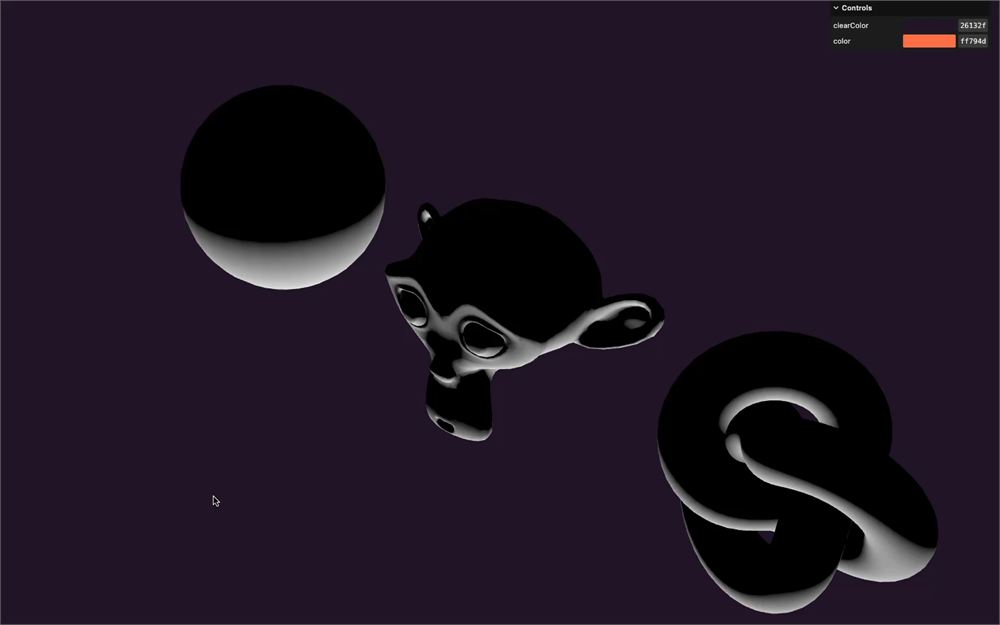
将它发送到 gl_FragColor:
void main()
{
    // ...

    // Final color
    gl_FragColor = vec4(intensity, intensity, intensity, 1.0);
    // ...
}
intensity 目前从 -1 到 +1,我们想要控制这个值,限制它并让它平滑。你大概知道接下来要干什么了。我们将使用 smoothstep。
在创建 direction 之后,创建一个值为 -0.8 的 low 变量和一个值为 1.5 的 high 变量:
void main()
{
    // ...

    // Halftone
    float repetitions = 50.0;
    vec3 direction = vec3(0.0, -1.0, 0.0);
    float low = - 0.8;
    float high = 1.5;

    // ...
}
这些也将被用作参数。
现在对 intensity 调用 smoothstep,并使用 low 和 high 变量作为边界(第一个和第二个参数):
void main()
{
    // ...

    float intensity = dot(normal, direction);
    intensity = smoothstep(low, high, intensity);

    // ...
}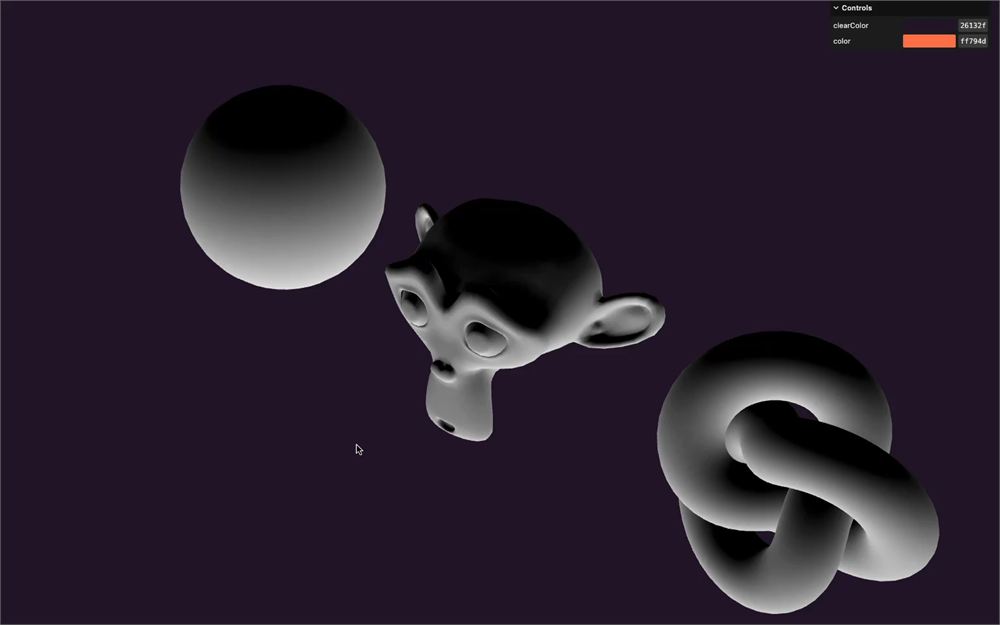
渐变的 0.0 起点更高了,而且该渐变在底部永远达不到 1.0
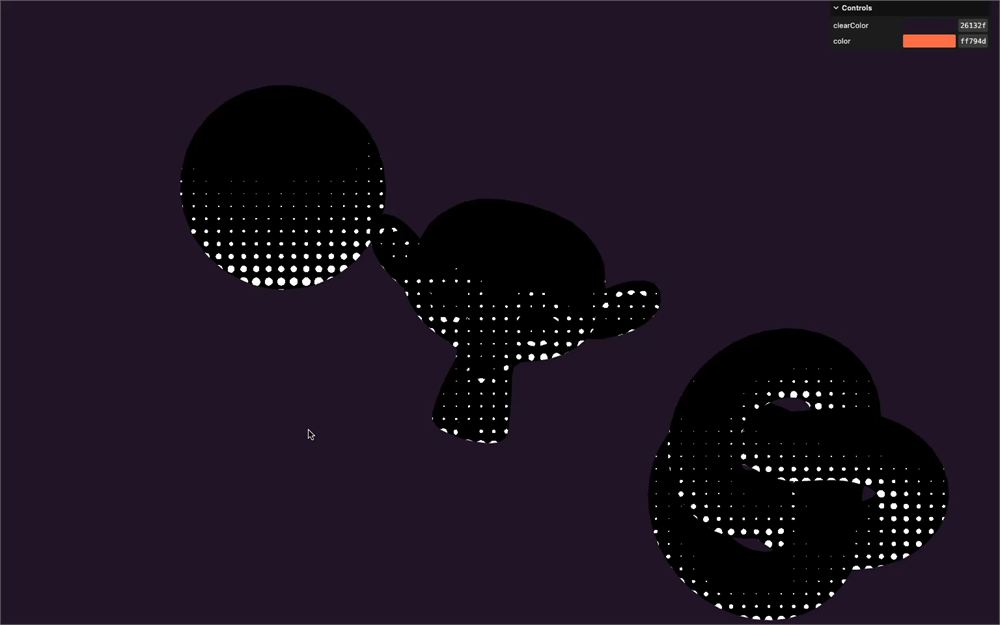
现在我们可以将 intensity 乘以 0.5(而不是临时的 0.3),并把 point 发送到 gl_FragColor 来查看结果:
void main()
{
    // ...

    float point = distance(uv, vec2(0.5));
    point = 1.0 - step(0.5 * intensity, point);

    // Final color
    gl_FragColor = vec4(point, point, point, 1.0);
    // ...
}
颜色
我们快完成了。现在需要将 halftone 与初始的 color 结合起来。
首先,在 Halftone 部分的开始处创建一个 vec3 pointColor 变量,并将其设为红色:
void main()
{
    // ...

    // Halftone
    float repetitions = 50.0;
    vec3 direction = vec3(0.0, -1.0, 0.0);
    float low = - 0.8;
    float high = 1.5;
    vec3 pointColor = vec3(1.0, 0.0, 0.0);

    // ...
}
现在根据 point 变量将 color 与 pointColor 混合,并像一开始那样把 color 发送到 gl_FragColor:
void main()
{
    // ...

    color = mix(color, pointColor, point);

    // Final color
    gl_FragColor = vec4(color, 1.0);
    // ...
}
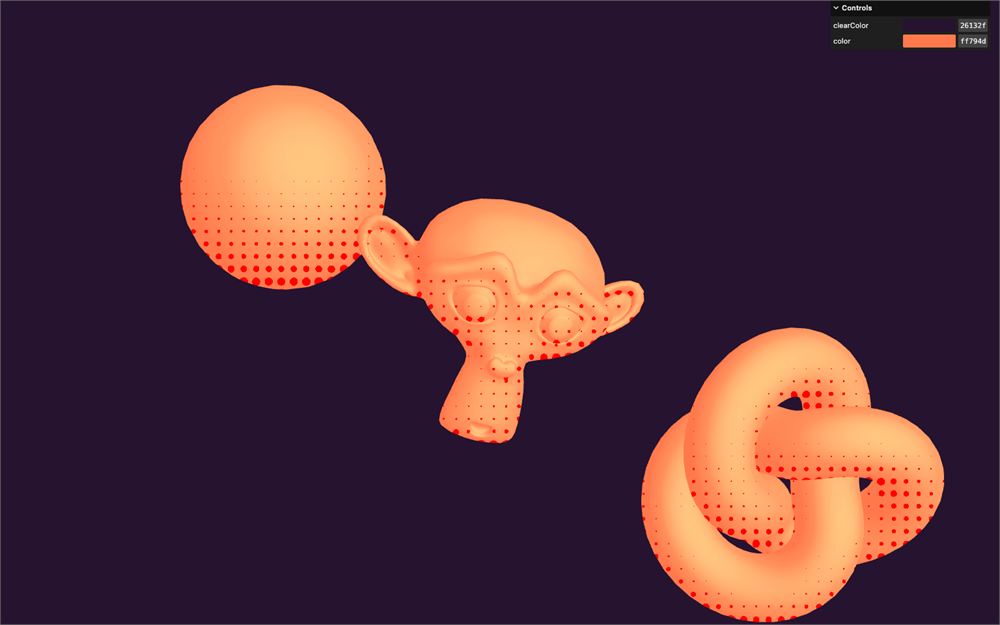
大功告成!虽然点太大了,颜色也不太匹配,但我们已经有了自己的 halftone。
函数
在调整它之前,为了多次使用它,我们将把它放进一个函数中。
这就是为什么我们把所有设置变量都放在 Halftone 部分的开头。
在 main() 之前,创建一个返回 vec3 的 halftone 函数,并设置以下参数:
vec3 halftone(
    vec3 color,
    float repetitions,
    vec3 direction,
    float low,
    float high,
    vec3 pointColor,
    vec3 normal
)
{

}
除了 repetitions、direction、low、high 和 pointColor,还有 color,它是我们想要改变的基础颜色,以及 normal,因为我们在函数中会需要它。
把与 halftone 相关的代码放进去,但不要放设置变量(现在保存会触发一个错误):
vec3 halftone(
    vec3 color,
    float repetitions,
    vec3 direction,
    float low,
    float high,
    vec3 pointColor,
    vec3 normal
)
{
    float intensity = dot(normal, direction);
    intensity = smoothstep(low, high, intensity);

    vec2 uv = gl_FragCoord.xy / uResolution.y;
    uv *= repetitions;
    uv = mod(uv, 1.0);

    float point = distance(uv, vec2(0.5));
    point = 1.0 - step(0.5 * intensity, point);

    color = mix(color, pointColor, point);
}
返回 mix 的输出,而不是更新 color:
vec3 halftone(
    vec3 color,
    float repetitions,
    vec3 direction,
    float low,
    float high,
    vec3 pointColor,
    vec3 normal
)
{
    // ...

    return mix(color, pointColor, point);
}
我们的 halftone 函数准备好了。
用相同的参数调用它:
void main()
{
    // ...

    // Halftone
    color = halftone(
        color,                 // Input color
        50.0,                  // Repetitions
        vec3(0.0, - 1.0, 0.0), // Direction
        - 0.8,                 // Low
        1.5,                   // High
        vec3(1.0, 0.0, 0.0),   // Point color
        normal                 // Normal
    );

    // Final color
    // ...
}
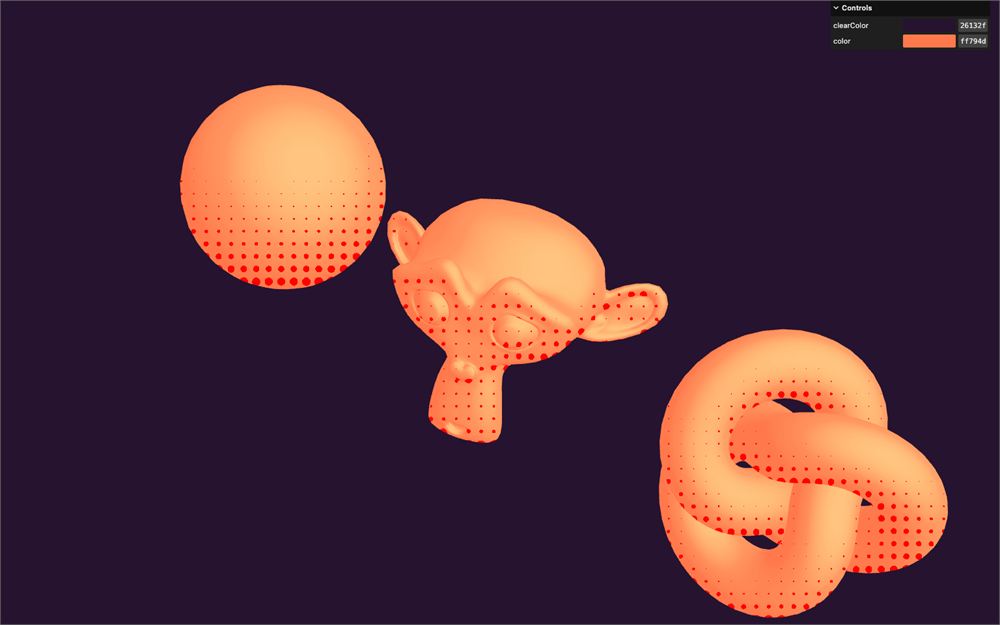
你应该会看到完全相同的结果,但现在我们可以调用这个函数来添加新的 halftone 了。
Uniforms
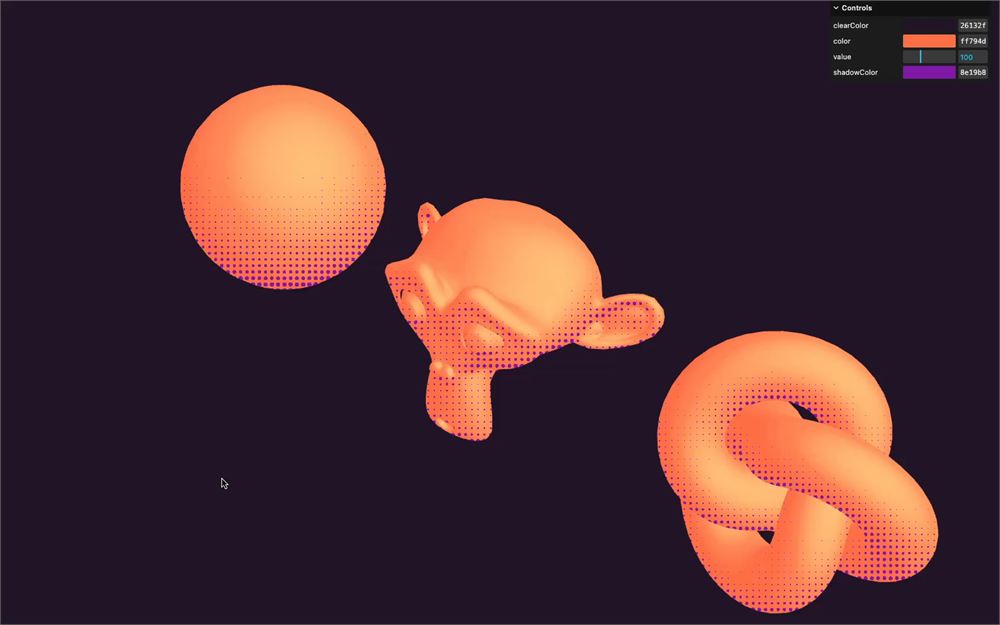
让我们来点好玩的,把阴影 halftone 的颜色和重复次数添加到调试面板中。
在 script.js 中,使用 Uniform 类创建一个 uShadowRepetitions uniform,并将其设为 100:
const material = new THREE.ShaderMaterial({
    vertexShader: halftoneVertexShader,
    fragmentShader: halftoneFragmentShader,
    uniforms:
    {
        // ...
        uShadowRepetitions: new THREE.Uniform(100)
    }
})
在 materialParameters 上,创建一个 shadowColor 属性,设为 '#8e19b8'
const materialParameters = {}
materialParameters.color = '#ff794d'
materialParameters.shadowColor = '#8e19b8'
使用 Uniform 类和 Color 类,并以 materialParameters.shadowColor 创建一个 uShadowColor uniform:
const material = new THREE.ShaderMaterial({
    // ...
    uniforms:
    {
        // ...
        uShadowColor: new THREE.Uniform(new THREE.Color(materialParameters.shadowColor))
    }
})
为 uShadowRepetitions uniform 添加一个调节项:
gui
    .add(material.uniforms.uShadowRepetitions, 'value')
    .min(1)
    .max(300)
    .step(1)
为 shadowColor 属性添加一个调节项,并在它变化时更新 uColor uniform:
gui
    .addColor(materialParameters, 'shadowColor')
    .onChange(() =>
    {
        material.uniforms.uShadowColor.value.set(materialParameters.shadowColor)
    })
在 fragment shader 中获取这两个 uniform:
uniform float uShadowRepetitions;
uniform vec3 uShadowColor;
在 halftone 调用中使用它们:
void main()
{
    // ...

    // Halftone
    color = halftone(
        color,                 // Input color
        uShadowRepetitions,    // Repetitions
        vec3(0.0, - 1.0, 0.0), // Direction
        - 0.8,                 // Low
        1.5,                   // High
        uShadowColor,          // Point color
        normal                 // Normal
    );

    // ...
}
玩得开心。
光照 halftone
让我们好好利用我们的 halftone 函数,再创建一个对应于来自顶部的光照、并带有相应 uniforms 的 halftone。
你可以自己试着做一做。
向 materialParameters 添加一个 lightColor 属性,并将其值设为 '#e5ffe0':
const materialParameters = {}
materialParameters.color = '#ff794d'
materialParameters.shadowColor = '#8e19b8'
materialParameters.lightColor = '#e5ffe0'
创建值为 130 的 uLightRepetitions uniform 和值为 materialParameters.lightColor 的 uLightColor uniform:
// ...
const material = new THREE.ShaderMaterial({
    // ...
    uniforms:
    {
        // ...
        uLightRepetitions: new THREE.Uniform(130),
        uLightColor: new THREE.Uniform(new THREE.Color(materialParameters.lightColor))
    }
})
添加相应的调节项:
gui
    .add(material.uniforms.uLightRepetitions, 'value')
    .min(1)
    .max(300)
    .step(1)

gui
    .addColor(materialParameters, 'lightColor')
    .onChange(() =>
    {
        material.uniforms.uLightColor.value.set(materialParameters.lightColor)
    })
在 fragment shader 中获取它们:
uniform float uLightRepetitions;
uniform vec3 uLightColor;
用以下参数再次调用 halftone:
void main()
{
    // ...

    color = halftone(
        color,               // Input color
        uLightRepetitions,   // Repetitions
        vec3(1.0, 1.0, 0.0), // Direction
        0.5,                 // Low
        1.5,                 // High
        uLightColor,         // Point color
        normal               // Normal
    );

    // ...
}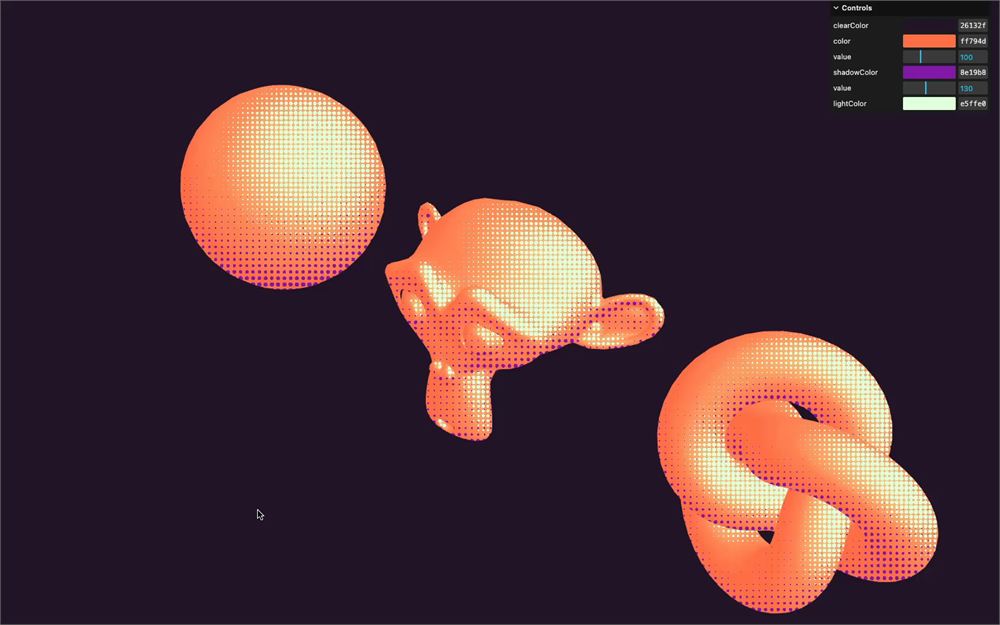
我们完成了!
进一步探索
一如既往,请随意进一步探索。
以下是一些建议:
- 添加更多调节项,比如 halftone 的
direction、low和end(别忘了direction的长度必须为1)。 - 重构
halftone函数。它可以写得更简短得多。 - 为 halftone 添加一个渐变,而不是统一的颜色。
- 为 halftone 添加一个 alpha 参数,以便在颜色中使它淡出。
- 尝试绘制不同于圆盘的形状。